Create new JBoss Tools Documentation Jira issue


JBoss.orgCommunity Documentation
Version: 1.1.0.M2
Copyright © 2009 JBoss, a division of Red Hat
November 2008

This chapter gives you a short introduction to Smooks, Smooks tools and its installation.
First, have a look at the key features of Smooks tools:

Here, we provide you with a key functionality which is integrated in Smooks tools.
Table 1.1. Key Functionality for Smooks Tools
| Feature | Benefit | Chapter |
|---|---|---|
Smooks Configuration File Wizard | Smooks tools allows to create/edit the Smooks configuration file for Java2Java data transformation. | Smooks Configuration File Wizard |
Smooks Editor | Smooks Editor helps configure the created Smooks configuration file. | Smooks Editor |
Smooks is a Java Framework/Engine for processing XML and non XML data (CSV, EDI, Java, JSON etc).
Transformation: Perform a wide range of Data Transforms. Supports many different Source and Result types -XML/CSV/EDI/Java/JSON to XML/CSV/EDI/Java/JSON.
Java Binding: Bind into a Java Object Model from any data source (CSV, EDI, XML, Java, JSON etc).
Huge Message Processing: Process huge messages (GBs) - Split, Transform and Route message fragments to JMS, File, Database etc destinations. Route multiple message formats to multiple destinations in a single pass over a message.
Message Enrichment: Enrich a message with data from a Database, or other Datasources.
Combine: Combine the above features in different ways e.g. add Message Enrichment as part of a Splitting and Routing process.
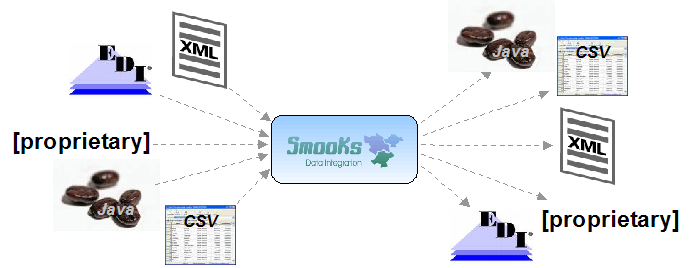
For More informations about Smooks, please visit Smooks official site.
Smooks tools is a set of graphical tools for editing Smooks configuration file based on Eclipse.
The Smooks tools was included by the JBoss Tools since 3.0.0 Beta1 version. You can download the JBoss Tools from JBoss download site.
Smooks tools (JBoss Tools) run with the latest Eclipse and other required plug-ins (GEF, EMF, etc.).
You should download the latest IDE for Java EE developers from Eclipse site. It contains many plug-ins ( GEF, EMF, etc. ) required by Smooks dev tools.
Now let's progress to more advanced topics.
This "Quick Start" will show how to use the Smooks tools to create/edit the Smooks configuration file for Java2Java data transformation.
This chapter gives you a brief understanding of the Smooks tools.
Visit here to download the "java-to-java" example project.
Tip:
The example project is based on Maven, we suggest you to create a new eclipse Java project, copy the example code and .jar files from the example project and paste them into the eclipse Java project.
Select the Smooks Java-to-Java example project that you created and right-click, select the menu New > Other, then find Smooks > Smooks Configuration File. Click the Next button.
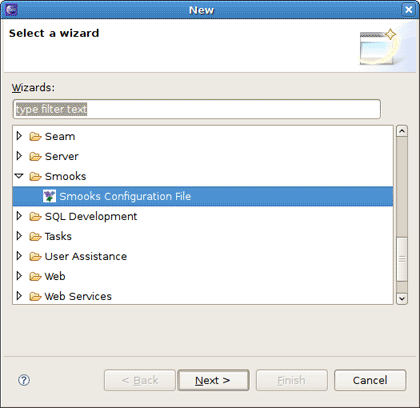
The first wizard page is a file path creation page. Select the src folder to be the files container, and input the name smooks-config.xml. Click Next.

The second wizard page is a Smooks configuration file version choose page.Select appropriate one and click Finish.
When all the wizard steps are passed, a new Smooks Configuration file is created and the Smooks Configuration Editor will be opened automatically:
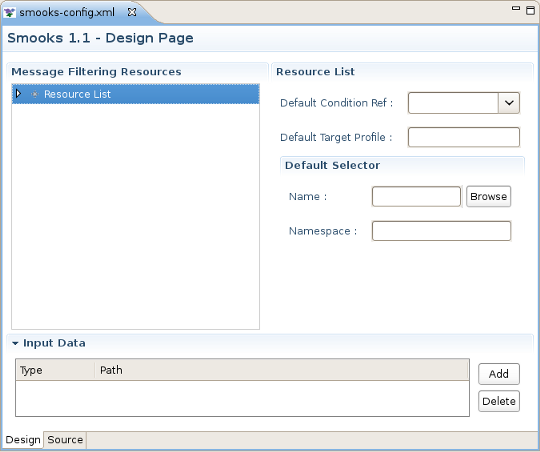
To choose the transform data you should click Add button in the Input Data section.
After clicking the button the Data Type Selection wizard is opened, and there are two data types in the list: Java and XML.
Note
There will become more and more data types on the list as the development goes on.
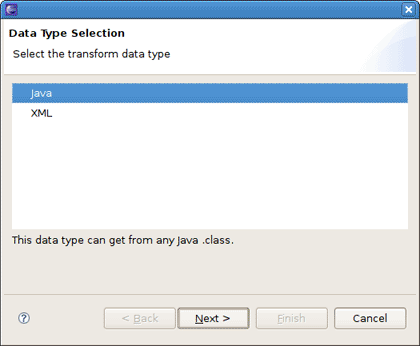
Select the Java data type and click Next, you will see the JavaBean class selection page:
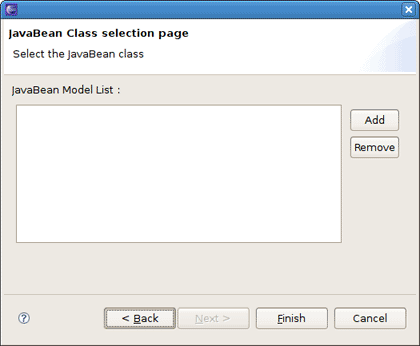
Let's select the Order class from the example project as the source JavaBean class and the ListOrder class as the target JavaBean class.When you selected the necessary java classes, click Finish and you should see all added java classes displayed in the Input Data Section .
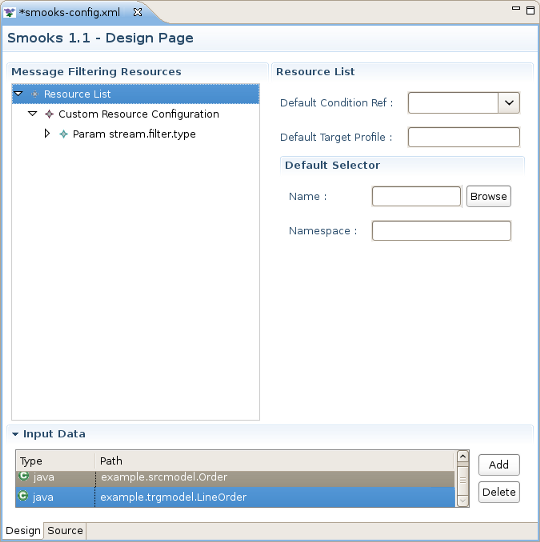
How to map the java class just added?
First, you should know what to transform:
Bind the "customerName" property of the Order#header to the "customerName" property of LineOrder.
Bind the "customerNumber" property of the Order#header to the "customerId" property of LineOrder.
Bind the "price" property of the OrderItem to the "unitPrice" property of LineItem.
Bind the "productId" property of the OrderItem to the "productCode" property of LineItem.
Bind the "quantity" property of the OrderItem to the "unitQuantity" property of LineItem.
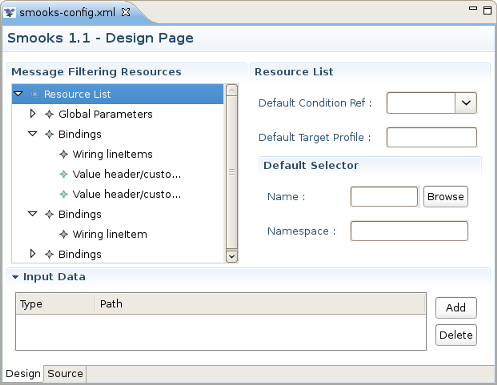
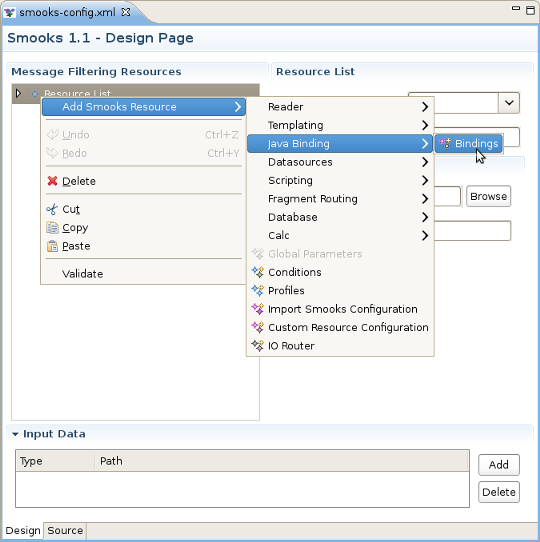
Make sense? You should right click Resource List , select Add Smooks Resource>Java Binding>Bindings.
First of all, you should bind Order to LineOrder. To do this one Bindings Item should be added to the Resource List.
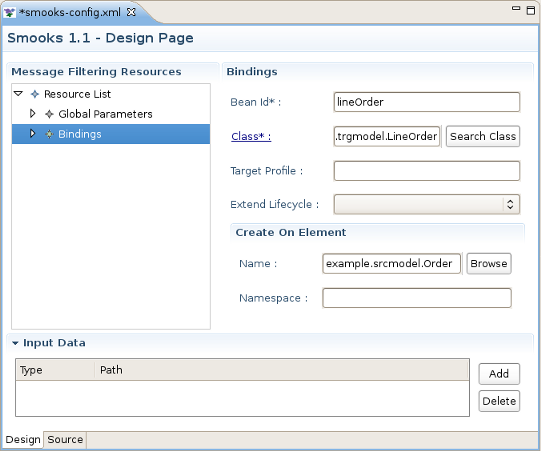
Click on it and you should see Bindings Section to the right of Message Filtering Resources.Write lineOrder in the Bean id field.
Select example.trgmodel.LineOrder in the Class field and example.srcmodel.Order in the Name field.Your Smooks Configuration Editor should look like this:
Now you should bind two values "customerNumber" property of the Order#header to the "customerId" property of LineOrder.To do this right click your just created Bindings Item >Add Smooks Resource>Value .
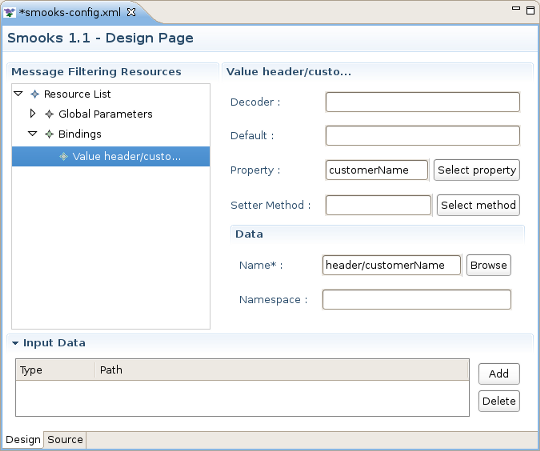
Note:
Please, remember that the root nodes of the source data and target data *MUST* be connected.
This rule is not only for Java-to-Java, but also is relevant for XML-to-Java
Do the same operation with the other properties in this and other classes.
It's also necessary to bind orderItems property of the Order to lineItems property of LineOrder.The difference from the previous steps is that the orderItems is presented by the list of Order and lineItems is the massive of LineItem .To do the binding,you should use Wiring Item.First you should create a new Binding item. This is a configuration that allows you to construct an object graph .Select example.trgmodel.LineItem[] in the Class field and orderItems in the Name field,in bean Id write lineItems. Your Smooks Configuration Editor should look like this:

Then you should right click lineOrder binding item >Add Smooks Resource>Wiring.Select lineItem in Bean id Ref.
The final step is to add new Wiring item to lineOrder Binding.In the Bean id Ref select lineItems and in Property select lineItems.
Now, you should save the file and the Smooks tools generate the correct configuration file content.
OK, let run the test class: example.Main. (Please, make sure that the Smooks engine loads the correct configuration file).
Success!
In this section you will explore the details of Smooks Design Page usage.
Smooks Design Page is one tab of the Smooks Editor.
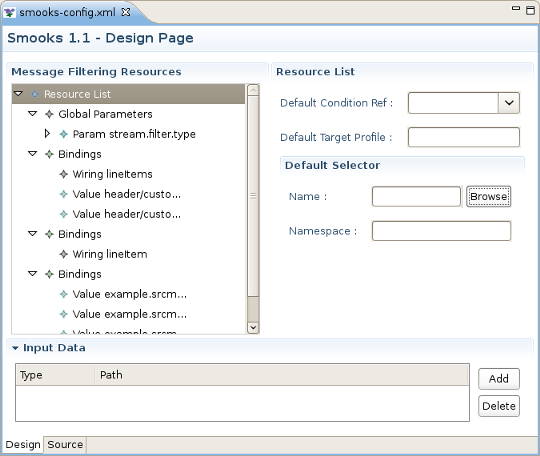
This page consists of 3 sections: Message Filtering Resources, Input Data and the section devoted to the configurations of a selected in a Message Filtering Resources section Item.
You can bind classes using Bindings item on the Design page of the Smooks Editor.
Resource list item in Message Filtering Resources corresponds to the root element of the smooks-config.xml file.You can configurate the next four properties using corresponding fields:
default-selector:Defines the selector that will be applied to all resource-config elements in the smooks-config.xml, where a selector is not defined.
default-selector-namespace:Defines the default selector namespace.
default-target-profile: Defines the default target profile that will be applied to all resources in the smooks-config.xml.
default-condition-ref:The condition is applied to resources where an empty "condition" element (i.e.
<condition/>)is defined.The condition element does not reference a globally defined condition.
The configuration editor also edits the Smooks parse type and manages the Import Files.
Using Selector generate dialog you can allow the user to select a node for generation "selector" for smooks-config file. To open the dialog you should left click Browse button in Default Selector section.
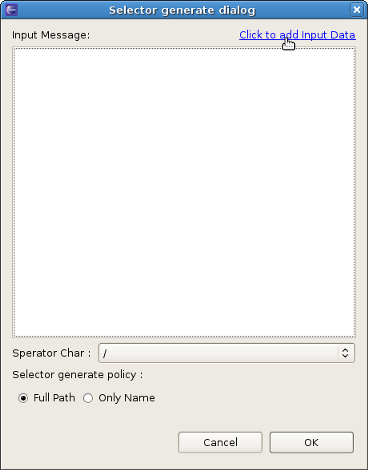
When the dialog is opened you should click "Click to add input data"to set the selector. In the opened Data Type Selection Wizard you should choose the type of the file and the file itself you want to load to the Selector generate dialog.After that your dialog should look nearly like that:
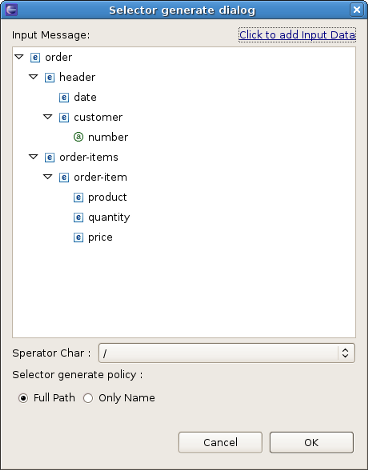
The final step is to choose the node you want to make a selector for smooks-config.xml.
If your config file doesn't contain Global Parametres item yet, you should add it by right click Resource List>Add Smooks Resource>Global Parametres.After this step you should add Param to just created Global Parametres.
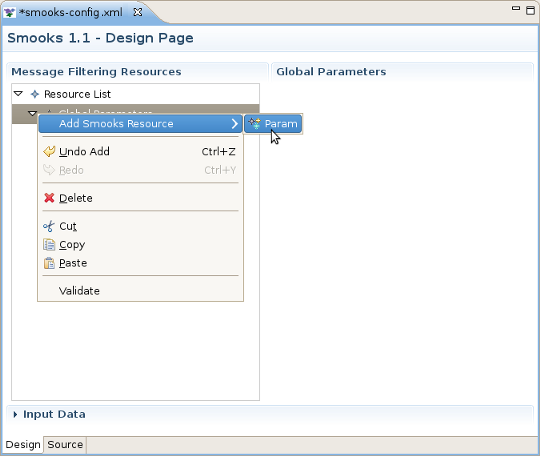
Then left click Param and in the Param section, you will see a set of text fields: Name, Type and Text. Name value is required. To set a parse type you should write SAX/DOM to the Text field.
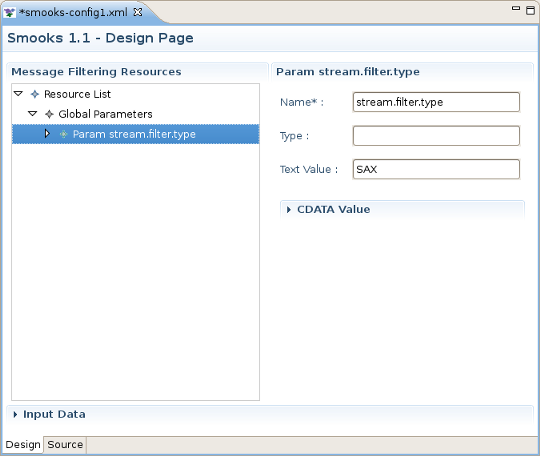
To apply changes to the smooks-config.xml click Save button ( Ctrl+S).
Right click Resource List>Add Smooks Resource>Import Smooks Configuration , then you should see a new Import Smooks Configuration item in the list (see the figure below).
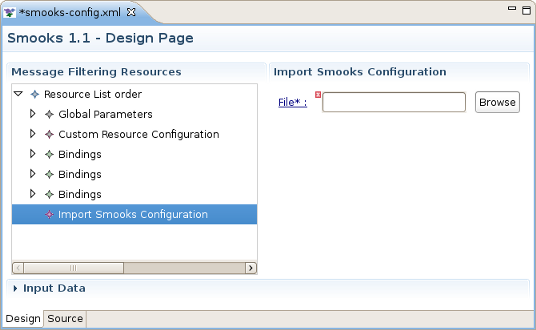
Left click the added item and to the left of Message Filtering Resources Import Smooks Configuration section should appear. Click the Browse button and select the file you want to import.
Click
Save and the <import> tag with the corresponding file path as a
file property will be added to the
smooks-config.xml.
This section provides information about Smooks Source Editor Page.
You can use this editor to edit the Smooks Configuration file directly.
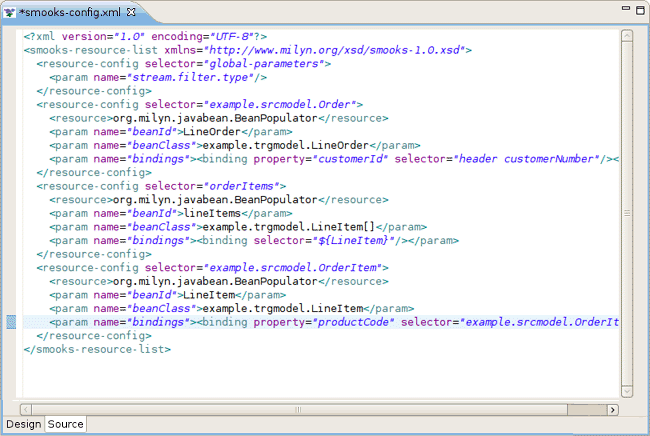
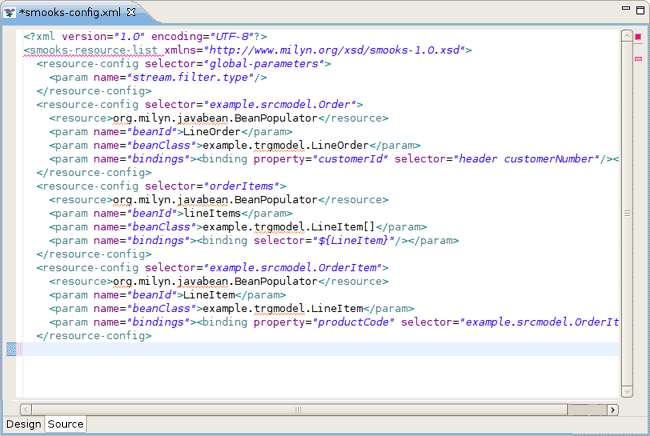
If the Smooks tools can't understand the configuration file or the configuration file is illegal (XML structure isn't right for Smooks Configuration file, etc.), the error is underlined.
We hope, our guide will help you to get started with JBoss Smooks Tools. Besides, for additional information you are welcome on JBoss forum.