In the JSF Tools Reference Guide and Struts Tools Reference Guide you had possibility to read about Graphical Editor for JSF and Struts configuration files, Graphical Editor for Tiles Files, Graphical Editor for Struts Validation Files. All these editors have OpenOn and Content Assist features, which are described in more details in this document. In addition you get to know a Visual Page Editor for combined visual and source editing of Web pages and many other editors for different types of files.
JBoss Developer Studio has powerful editor features that help you easily navigate within your application and make use of content and code assist no matter what project file (jsp, xhtml, xml, css, etc...) you are working on.
OpenOn lets you easily link directly from one resource to another in your project without using the Package Explorer view (project tree). With OpenOn, you can simply click on a reference to another file and the file will be opened.
OpenOn is available for the following files:
Java files
Press and hold down the Ctrl key. As you move the mouse cursor over different file references in the file, they display an underline. When you hover the name of the file you want to open, click and the file will open in its own editor. In this example the managed bean NameBean will open.

This is the result of using OpenOn.

You can also use OpenOn with defined attributes.

You can also open any JSP pages.

OpenOn is also very useful in JSP pages. It will allow you to quickly jump to the reference instead of having to hunt around in the project structure.
You can easily open the imported property files.

Use OpenOn to open a CSS file used with a JSP page:

Open managed beans:

For JSP files in a JSF project, you can also easily open the navigation rules by applying OpenOn to the JSF tag for the navigation outcome:

Content assist is available when working with
When working with JSF project in JBoss Developer Studio, you can use various Content Assist features while developing:
Content Assist for XML, JSP and JSF configuration files
Content Assist based on project data
Content Assist with graphical JSF editor
At any point when working with any XML, JSP and JSF configuration files Content Assist is available to help you. Simply type Ctrl-Space to see what is available.
Content Assist for JSF configuration file:

Content Assist for JSF JSP file:

Content Assist for other JSF XML project files (web.xml shown):

JBoss Developer Studio takes Content Assist to the next level. Studio will constantly scan your project and you will be able to insert code into the JSP page from your project that includes:
Values from Property files
"Managed beans" attributes and methods
Navigation Rule Outcomes
JSF variables (context, request etc...)
The figure below shows how to insert message from a Properties files. You simply put the cursor inside the "value" attribute and press Ctrl-Space. JBoss Developer Studio will scan your project and show a list of possible values to insert.

In the following screenshot we are inserting a "Managed bean" attribute value. Again, by simply clicking Ctrl-Space, JBoss Developer Studio will show a list of all possible values that you can insert.
Once you select a Managed bean, it will show you a list of all available attributes for the selected Managed bean (userBean).
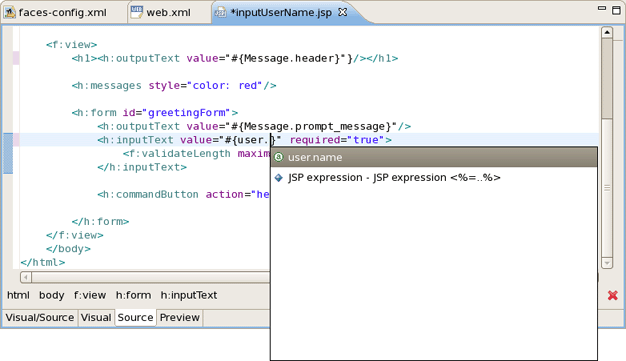
Code Assist based on project data will also prompt you for navigation rules that exist in your JSF configuration file.

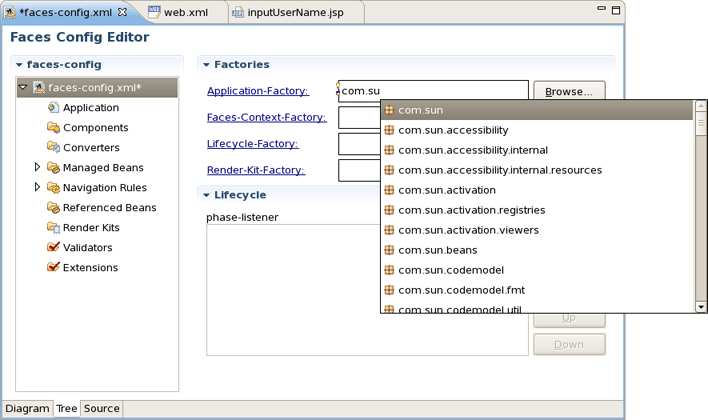
Content Assist features are available when you work with Struts projects.
Content Assist helps you in Struts Configuration file.


JBDS provides full code completion for JSF tags:

When the tag is selected the required attributes, if there any, are already inserted and the cursor is located to the first attribute. At this point you can ask for attribute proposals.


Content assist for HTML tags has the same mechanism as for JSF tags:

You can use as well attributes proposals for HTML tags:


JBDS indeed provides code completion for RichFaces framework components. All you have to do is to install RichFaces libraries into your project. See here how to install it.

To insert a RichFaces component on a page expand JBoss RichFaces group on the palette
Click on some component
Put the needed attributes in the Insert Tag dialog and click Finish button

The RichFaces tag will be inserted on your page displayed in source and visual modes:

Here is what you need to do to add project based code assist to a custom component added in JBoss Developer Studio:
Create a new xml file in <JBDS_home>studio/eclipse/plugins/org.jboss.tools.common.kb_***/schemas/tld/. For example call it JeniaFaces.xml . The file should be written according to <JBDS_home>/studio/eclipse/plugins/org.jboss.tools.common.kb/kb.jar/org/jboss/tools/common/kb/kb-schema_1.0.dtd
Follow these steps to set what is available for code assist:
Adds code assist for JSF pre-defined objects, such as value= "#{param}" :
<AttributeType ...>

       <proposal type="jsfVariables"/>

</AttributeType>
Add bundle resource (property file) code assist:
<AttributeType ...>

       <proposal type="bundleProperty"/>

</AttributeType>
Add managed bean property code assist:
<AttributeType ...>

       <proposal type="beanProperty"/>

</AttributeType>
Add managed bean property but of a specified type:
<AttributeType ...>

       <proposal type="beanProperty">

          <param name="type" value="java.lang.Boolean"/>

       </proposal>

</AttributeType>
Add managed bean method with a signature:
<AttributeType ...>

       <proposal type="beanMethodBySignature">

          <param name="paramType" value="javax.faces.context.FacesContext"/>

          <param name="paramType" value="javax.faces.component.UIComponent"/>

          <param name="paramType" value="java.lang.Object"/>

          <param name="returnType" value="void"/>

       </proposal>

</AttributeType>
Add information on your xml file in <JBDS_home>/studio/eclipse/plugins/org.jboss.common.kb_***/plugin.xml
         <tld

            jsf="true"

            name="Jenia Faces"

            schema-location="schemas/tld/myJSF.xml"

            uri="http://www.jenia.org/jsf/dataTools"/>
Restart Eclipse. You should now have code assist for the component.
JBoss Developer Studio offers the flexibility to edit any files in either source or extra visual modes at the same time.
The project is yours and so is the source. JBoss Developer Studio provides you many different graphical editors to speed your application development. At the same time, you always have a full control over all project source files. Any changes you make in the source view immediately appear in the graphical view.
The JSF configuration file editor has three views: Diagram, Tree and Source. All views are synchronized, you can edit the file in any view.

The same is relevant to all other JBoss Developer Studio editors.
Web XML editor is shown. Web XML editor has a graphical view (Tree) and source (Source).

JBoss Developer Studio TLD file editor is shown in Tree view. At any point you can edit the source by switching to Source view.

JBoss Developer Studio comes with a powerful and customizable Visual Page Editor (VPE). You can use the Visual Page Editor to develop an application using any technology: JSF, Struts, JSP, HTML and others.
Current VPE version has two tabs: Visual/Source and Preview. To switch between the views you can use tabs at the bottom of the VPE or the shortcuts Ctrl + PageUp/Ctrl + PageDown.
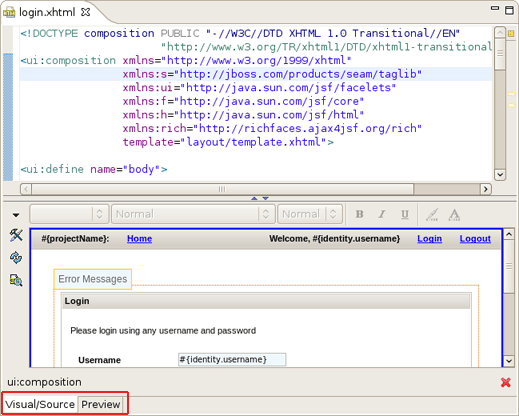
Using the Visual/Source view you can edit your pages in the Source and Visual modes simultaneously having an instant synchronization between them:
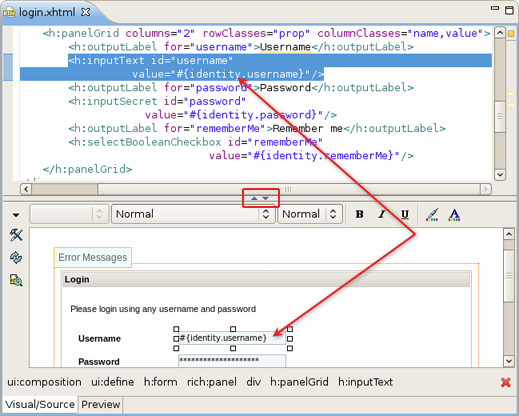
The view is designed in the form of a split pane with toggle buttons for quickly moving between Source, Visual or Source/Visual modes as shown on the figure above.
One more way to toggle between the various states of the split pane is using the shortcuts Shift + F6 for maximizing/restoring the Source part and Shift + Alt + F6 for maximizing/restoring the Visual part.
Tip:
When editing large documents hiding the Visual part will speed up the editing.
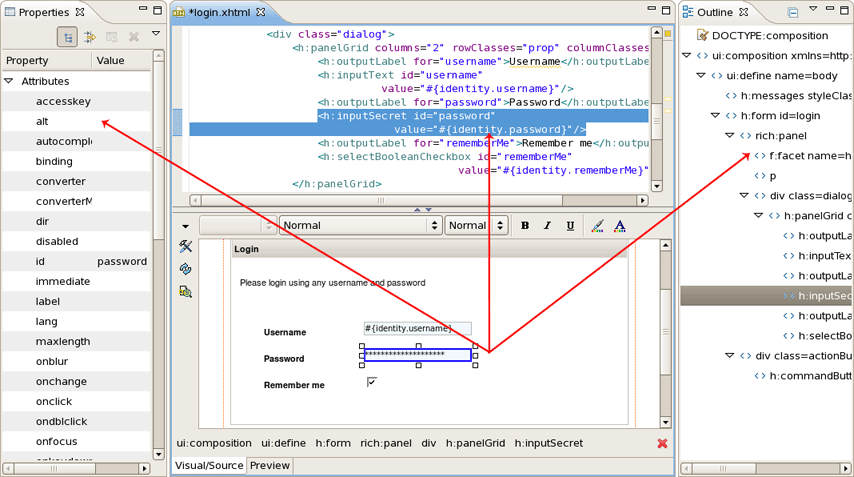
It should be pointed out that, no matter in what mode you are working, you get a full integration with Properties and Outline views:
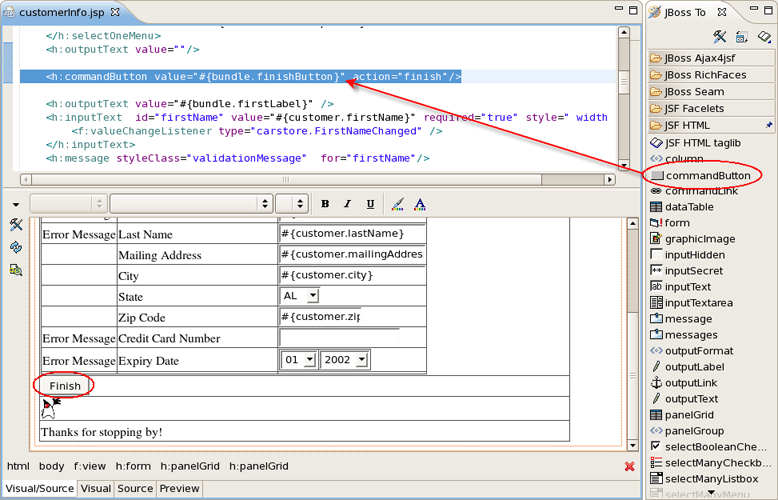
It's also possible to use the JBoss Tools Palette to insert any tag from the list of tag libraries to the page you are editing with just a click or drag-and-drop.
When working in JBoss Tools JSP editor you are constantly provided with feedback and contextual error checking as you type.
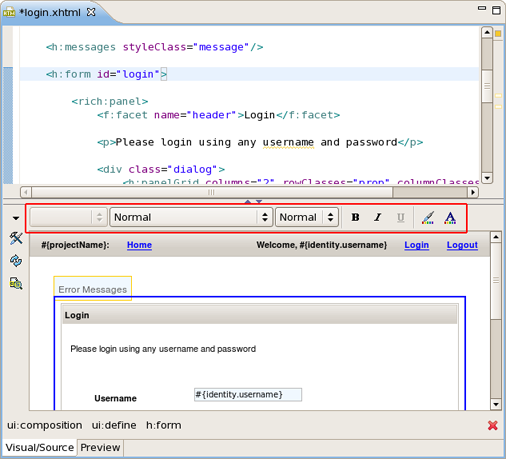
In the Visual part of the VPE there is a graphical toolbar, use it to add inline styling to JSF and Struts tags on your page. The toolbar can be hidden by clicking on arrow sign in the upper left corner.
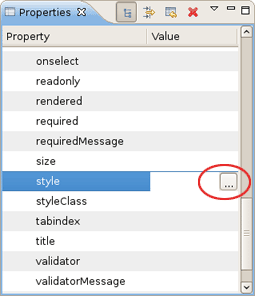
For editing inline styles for DOM elements VPE also provides CSS Dialog. It can be called from style line in the Properties view for a currently selected element.
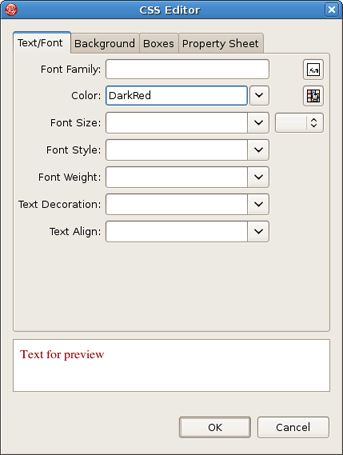
CSS Dialog has four tabs where css properties for text, background, borders and others can be specified. To see the result use a simple preview which is generated at the bottom of the CSS Dialog.
In the left vertical pane of the Visual part there are three buttons: Preferences, Refresh, Page Design Options.
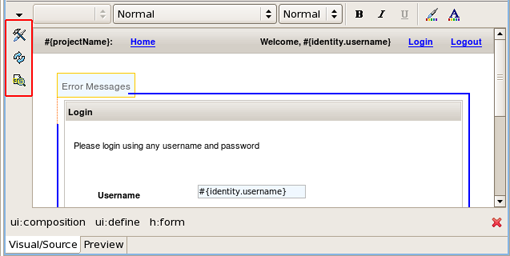
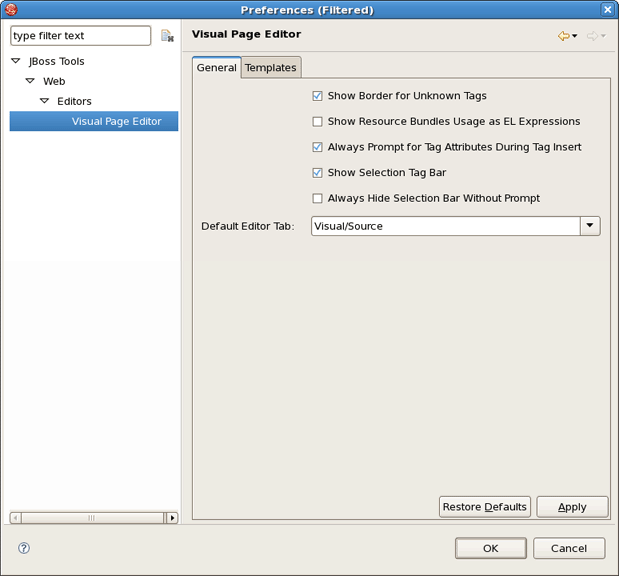
Preferences button provides a quick access to Visual Page Editor preferences.
Clicking on Refresh button you refresh the displaying information.
Page Design Options button leads to page design options.
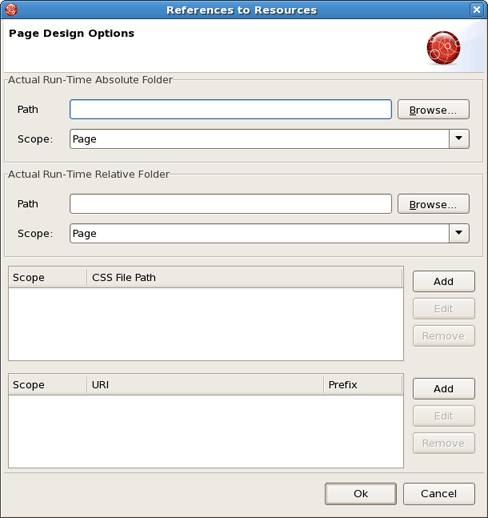
This dialog let's you set resources which are usually only resolved in runtime. To set a stylesheet, click Add (for CSS File Path section) and add your stylesheet. It works when CSS is defined on your page in the following way:
Code:
<link rel="stylesheet" type="text/css"

    href="#{facesContext.externalContext.requestContextPath}/style.css"/>
This will work fine in runtime, but the Visual Page Editor doesn't know what requestContextPath in design time is.
The next section (URI), let's you add URI taglibs if you are using includes so that the editor knows where to find the tag libraries.
The first two sections let you define actual runtime folders. Here is an example.
Let's say you have the following project structure:
WebContent/

  pages/

    img/

       a.gif

    header.jsp

  main.jsp
header.jsp content:
My Header

<img src="img/a.gif"/>
main.jsp:
<jsp:include page="pages/header.jsp" />
When you open main.jsp in Visual Page Editor, it will not be able to resolve the image from the header, however, it will work fine in runtime. To fix this in design time, click the Page Design Options button and set Actual Run-Time Relative Folder to <project>WebContent > pages and you will see the image appear.
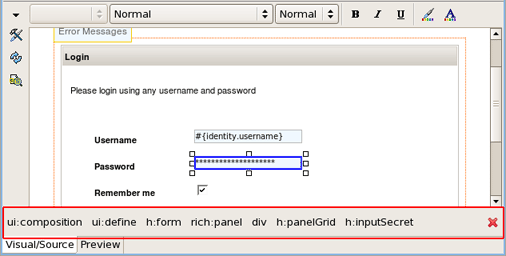
At the bottom of VPE there is a Selection bar.
By clicking on the component in Visual view or selecting a code snippet in Source mode you see the tags tree. If you want to hide the selection bar, use the "Hide Selection Bar" button on the lower right side.
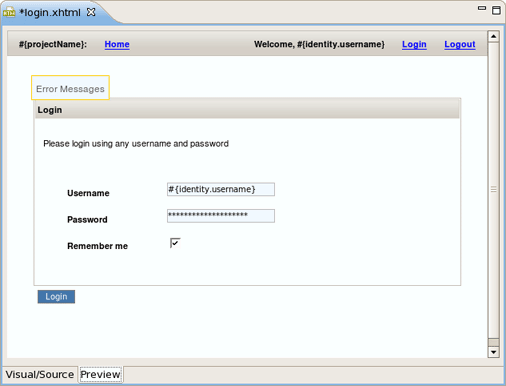
VPE comes with design-time preview feature which is available for:
Struts Pages
JSF Pages
Preview view is read-only, it shows how the page will look like in a browser.
Linux users may need to do the following to get the Visual Page Editor to work correctly on their machines.
The Visual Page Editor requires the library libstdc++.so.5. This library is contained in the compat-libstdc++-33.i386 package.
To install this package on Fedora Core or Red Hat Enterprise Linux run the following command:
yum install compat-libstdc++-33.i386
On any other rpm based distributions download libstdc++.so.5 and run the following command:
rpm -Uvh compat-libstdc++-33.i386
On Debian based distributives run the following command:
apt-get install compat-libstdc++-33.i386
In case you have the library installed and you still have issue with starting the visual page editor then close all browser views/editors and leave one visual page editor open and restart eclipse. This should force a load of the right XULRunner viewer.
Besides Visual Page Editor JBDS is supplied with a huge range of various editors for different file types: properties, TLD, web.xml, tiles, and so on.
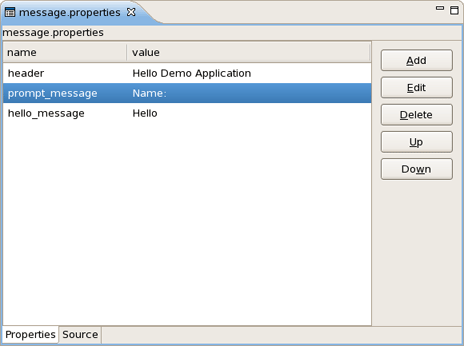
The Properties editor allows you to work in two different modes and also supports unicode characters.
To create a new properties file, in the Package Explorer view, select New > Properties File from the right-click context menu on the folder where you want to create the file.

You can edit the file using a table-oriented "Properties" viewer:
You can also use a Source viewer for editing the file:

The TLD editor comes with same features you will find in all other JBoss Developer Studio editors:
Graphical and source edit modes
Validation and error checking

You can easily switch from Tree to Source by selecting the Source tab at the bottom of the editor.

You can easily add a new tag:

You can also easily add a new attribute to an existing tag:

Content assist is available when editing the file using the Source viewer:

In the Source viewer, if at any point a tag is incorrect or incomplete, an error will be indicated next to the line and also in the Problems view below.

The Web Application File editor comes with the same features you will find in all other JBoss Developer Studio editors:
Graphical and source edit modes
Validation and error checking

You can add any new elements right in the Tree viewer:

Switch to the Source viewer to edit the web.xml file by hand at any time:

Content assist is available in the Source viewer. Simply click CTRL-Space anywhere in the file.


The CSS editor comes with the same features you will find in all other JBoss Developer Studio editors.
Content assist
Validation and error checking
With the CSS (Cascading Style Sheet) editor, you can take advantage of code prompting:

And you can also use the Properties view next to the editor to edit existing stylesheet declaration properties:

The JavaScript editor includes a Preview viewer and a Source viewer. In the Source viewer, you can use code assist:

You can also use the Source viewer with the Outline view to navigate around the file:

JBoss Developer Studio comes with an XSD Editor for XML Schema files. This editor comes from the Web Tools Project (WTP) (see WTP Getting Started).
To create a new XSD file, right-click a folder in the Package Explorer view, select New > Other... from the context menu and then select XML > XML Schema in the dialog box.

The XSD Editor includes two viewers for working on the file, a Design viewer and a Source viewer:

In the Design viewer, you can drill down on an element by double-clicking on it:

Various edit options are available when you right-click an element in the diagram:

You can also use the Properties view to edit a selected element:

You can also use a Source viewer for the file. In this viewer, along with direct editing of the source code, you can also edit the file by using the Properties view on the right:

