
In this chapter you will know what Seam Editors features are and how to work with them.
Content Assist (Ctrl + Space) is available when using EL variables in the following file formats:
JSP
XHTML
XML
JAVA
Notice, the code completion for the Seam components shows the proposals marked with Seam icon.

Note:
To get Code Assist available for an externally generated and imported project, don't forget to enable Seam features and configure Seam Settings in Project Preferences.

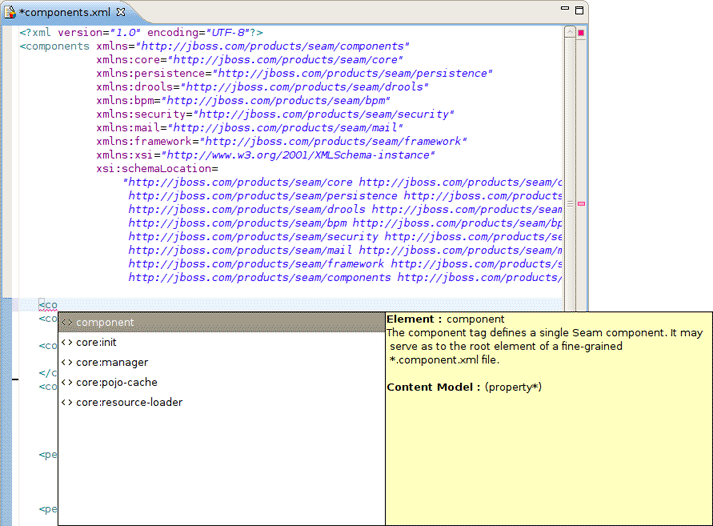
While you are editing a components.xml file you can make use of the Content Assist for inserting needed elements.
The editor also makes code completion aware of methods/attributes for EntityQuery component.

OpenOn let's you easily navigate through your project without using the Package Explorer or Project Explorer. After pressing Ctrl + left click (or just F3) you will see a corresponding method or class.

Validation of various possible problematic definitions is implemented for Seam applications.
If an issue is found it will be showed in the standard Problems View.

In the preferences page for Seam Validator you can see and modify the validator behavior. Go to Window > Preferences > JBoss Tools > Web > Seam > Validator and select the severity level for the optional Seam Validator problem.

On WTP projects validation are enabled by default and thus executed automatically, but on normal Java projects you will have to go and add the Validation builder to your project . It is available in the properties of your project under Validation. The validations can be run manually by clicking Validate via the context menu on your project which will execute all the active WTP validations.
When editing components.xml a structured tree editor is available in addition to pure source editing. It has a graphical view (Tree tab) and source (Source tab).

Note:
You can view and edit components.xml and other xml files directly in the Project Explorer and Properties sheet without opening the components.xml editor.
